Background
Cloudcannon provides a nifty URL field that allows content editors to upload and link to a file. However, there do not appear to be any settings for the URL field that allow developers to set the destination for file uploads. This creates the potential for content editors to add files to the root of the site. The alternative is training content editors on the file structure of the site and hoping they will follow directions which is not recommended.
Requirements
As a developer, I would like to be able to set the upload path as I would in the images field in order to guarantee
As a content editor, I would like to select the Link to File option and upload a file to the intended directory without having to find it.
Acceptance Criteria
Select the three dots next to the URL input
Select Link to a File
The designated upload directory should pop up in a module (eg assets/files/)
Where would I add that within the configuration cascade? I added this to the _inputs in my cloudcannon.config.yml and I added cascade true to make sure it trickled down to my URL fields, eg: cta.button.url
This does not pass the acceptance criteria. When I select the file option, the root directory pops up by default. My directory contains the assets/files directory. The correct directory will pop up for my images uploads where I have the following setting:
Re reading your question I see it was about URL inputs rather than file inputs so this isn’t exactly what you want (I’m guessing that you want the cta.button.url to be able to have standard links as well as files?)
If a straight file input does work, then what you’ve done is 90% of the way there, it just needs to be the name of your input (rather than my default example of ‘file_input’) - for example:
The issue is that CloudCannon’s URL field supports File uploads, but there is no way to set the upload path. Your solution will just turn the URL field into a file upload field which isn’t what I’m trying to achieve per the acceptance criteria.
If a select File:
Yeah, I totally get where you’re coming from. I had a quick chat with the application team, and it’s definitely on their radar, but there’s no confirmed timeline for it just yet.
In the meantime, a possible workaround could be setting up a structure where the user can add either a URL or a file, each configured accordingly. If that sounds helpful, I’m happy to send through an example of how to set that up
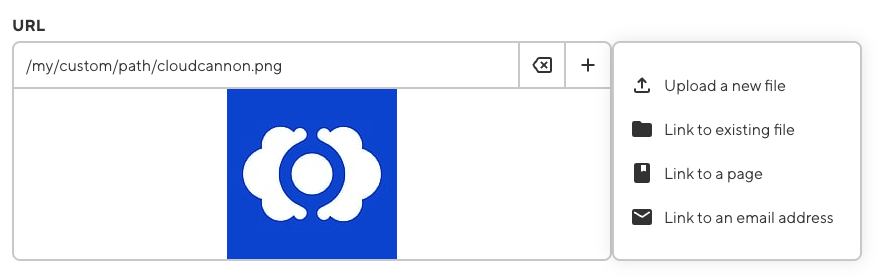
When you click a URL input, there is a new option to “Upload a new file”. This will respect your paths.uploads configuration. If you choose to “Link to an existing file”, the file browser will open at that same path.
There are now more configuration options to constrain the way a URL input can be used. For example, the following configuration would allow users to select existing files, and to upload new files to the /assets directory, but prevents them from uploading a new file to any other folder while in the file browser.
If you have paths.uploads configured globally, all your URL inputs will respect it. It’s also configurable scoped to the collection, editing interface, and specific input.
If your URL fields have the same key, you can configure them all at once with the global _inputs key, but we don’t have a way to target all inputs of a type in the config.
This was my exact fear. I think we need to do exchange programs for SWEs and marketing web devs so they can realize the average person will do EXACTLY what they are allowed to do.
Just jumping in with a link to today’s changelog, which gives more details for this feature, among others in the release:
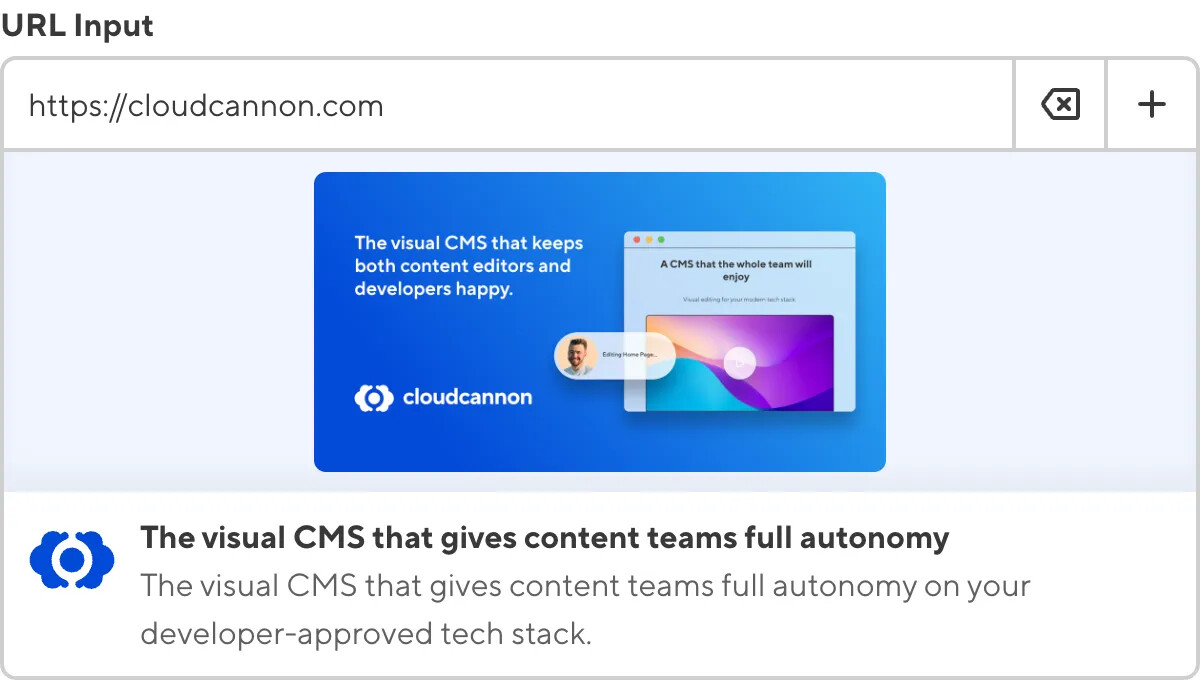
URL Inputs now have a text field, Clear button, and Select file button at the top of the drag-and-drop area.
The URL Inputs, the Select file button opens a dropdown with the Upload a new file, Link to an existing file, Link to a page, and Link to an email address options.
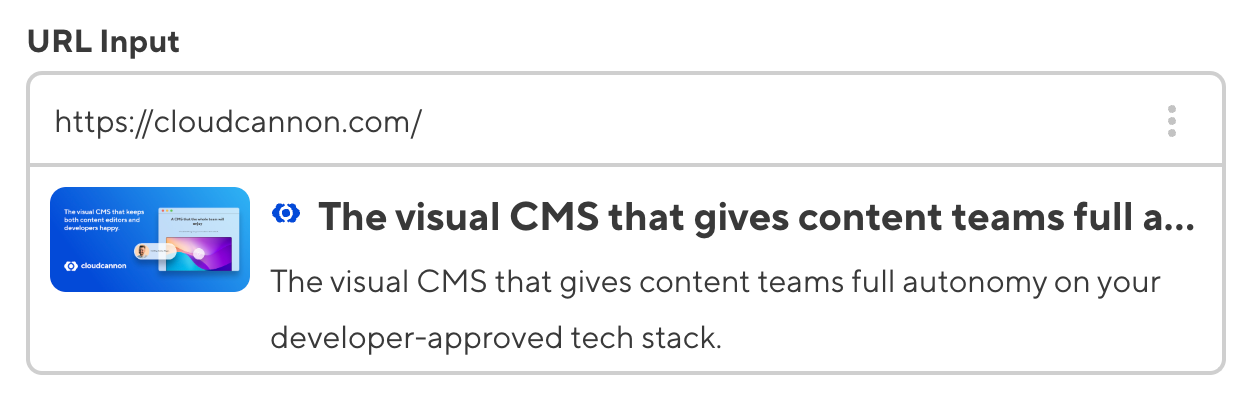
When you select a URL, CloudCannon will display the preview image, title, and subtitle.
You can now configure the path and allowed_sources configuration keys for URL Inputs, allowing you to control how and where CloudCannon uploads you files.
Added the disable_upload_file, disable_direct_input, disable_upload_file_in_file_browser, and hide_link_to_file configuration keys to URL Inputs.