Friendlier File Upload methods for Content Contributors

Hi all - I am interested to improve the experience of managing file collections for non-technical Content Contributors handling day-to-day updates on their organisation web sites.

We often work with schools who have collections such as booklists, school policies and other collections of PDFs that need to change each term, or school year. For our public schools staff are often time poor, multi-tasking reception duties or teaching duties.

Some of you might tell me that the key to getting this right is already within the CC Docs - Adjusting the uploads path document _ but I’m a visual person I would really appreciate seeing examples / case studies of how others present this for Content Editors to use.

Improving clarity around file upload options

One source of confusion for our users - is what destination to use - should they upload a new file to the Site Files or the DAM?

  1. Do you only present Content Editors with your preferred option?
  2. Do you have a better way to offer these choices in a way that’s easier for Content Editors to understand?

Here’s a screenshot (below) showing what a Content Editor currently sees:
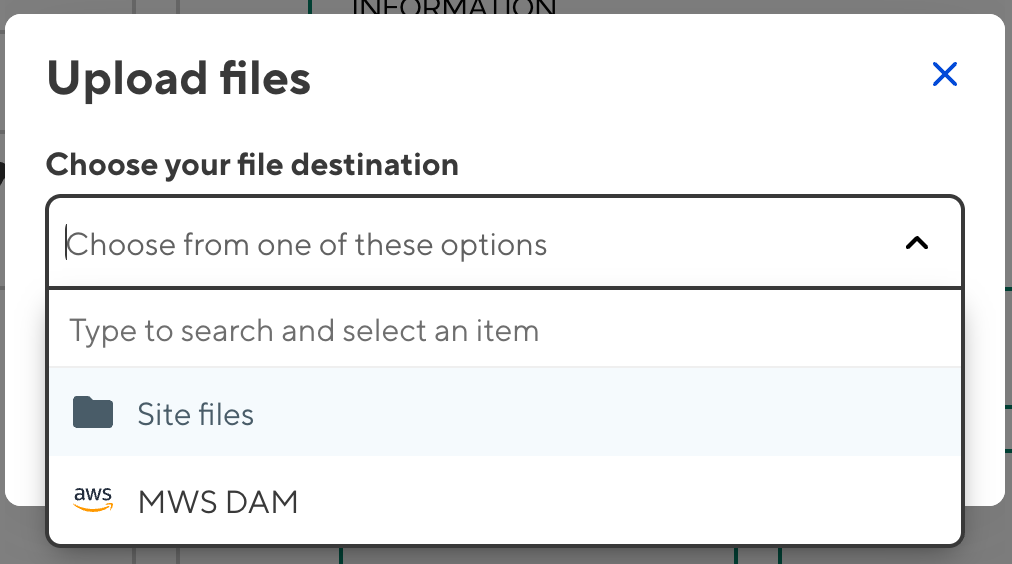
Navigating to subfolders

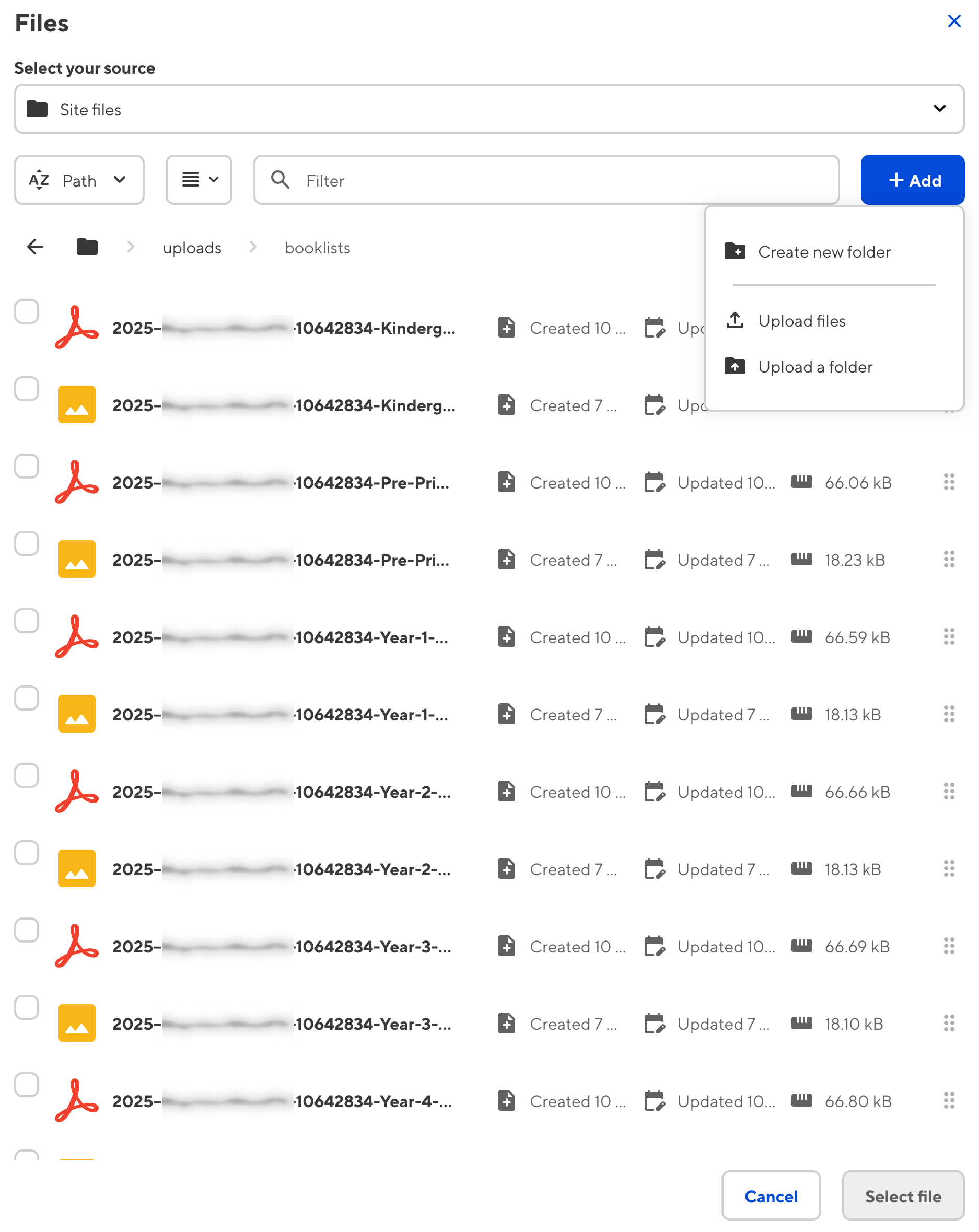
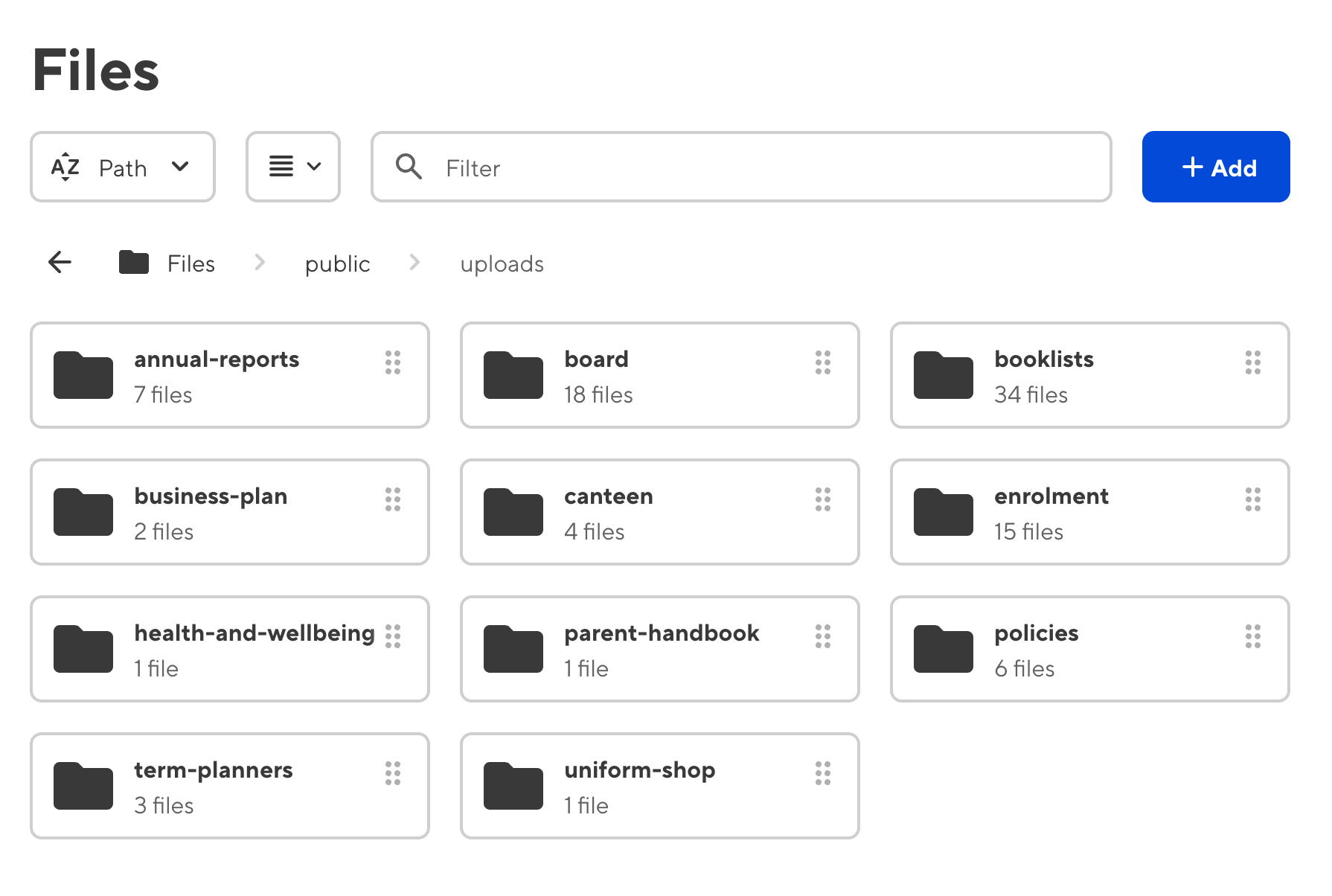
Currently - irregardless of choosing Site Files or DAM there doesn’t seem to be a way for the Content Editor to then easily navigate to upload subfolders such as “Booklists” or “Annual Reports”.
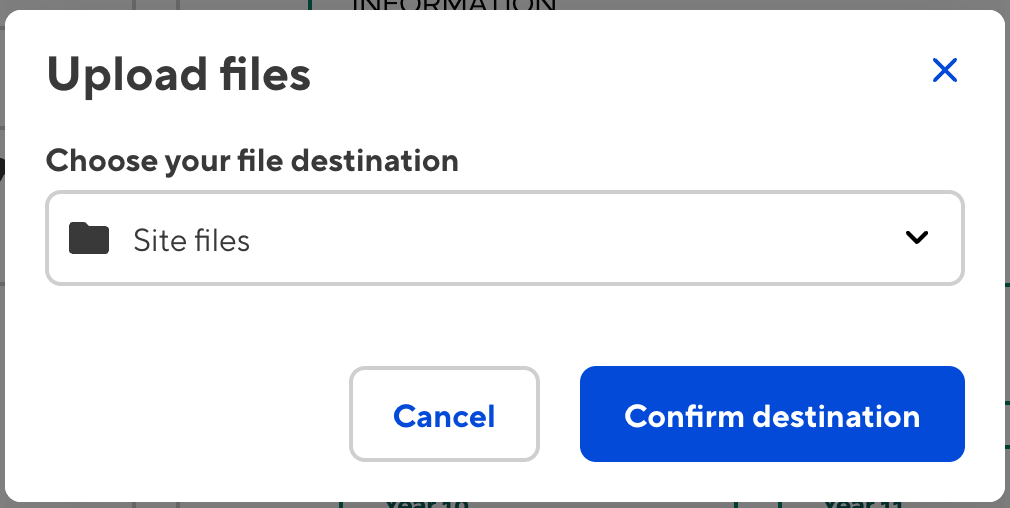
With our current set-up there doesn’t appear to be an easy way for Content Contributors to navigate to files > public uploads > subfolders

I am unsure if the best way to improve this aspect is to a) change our organisation pricing plan, b) change our config, c) change our Permissions Control settings or d) something else…!

The folders below exist - how to Content Contributors see them?
Additional Context

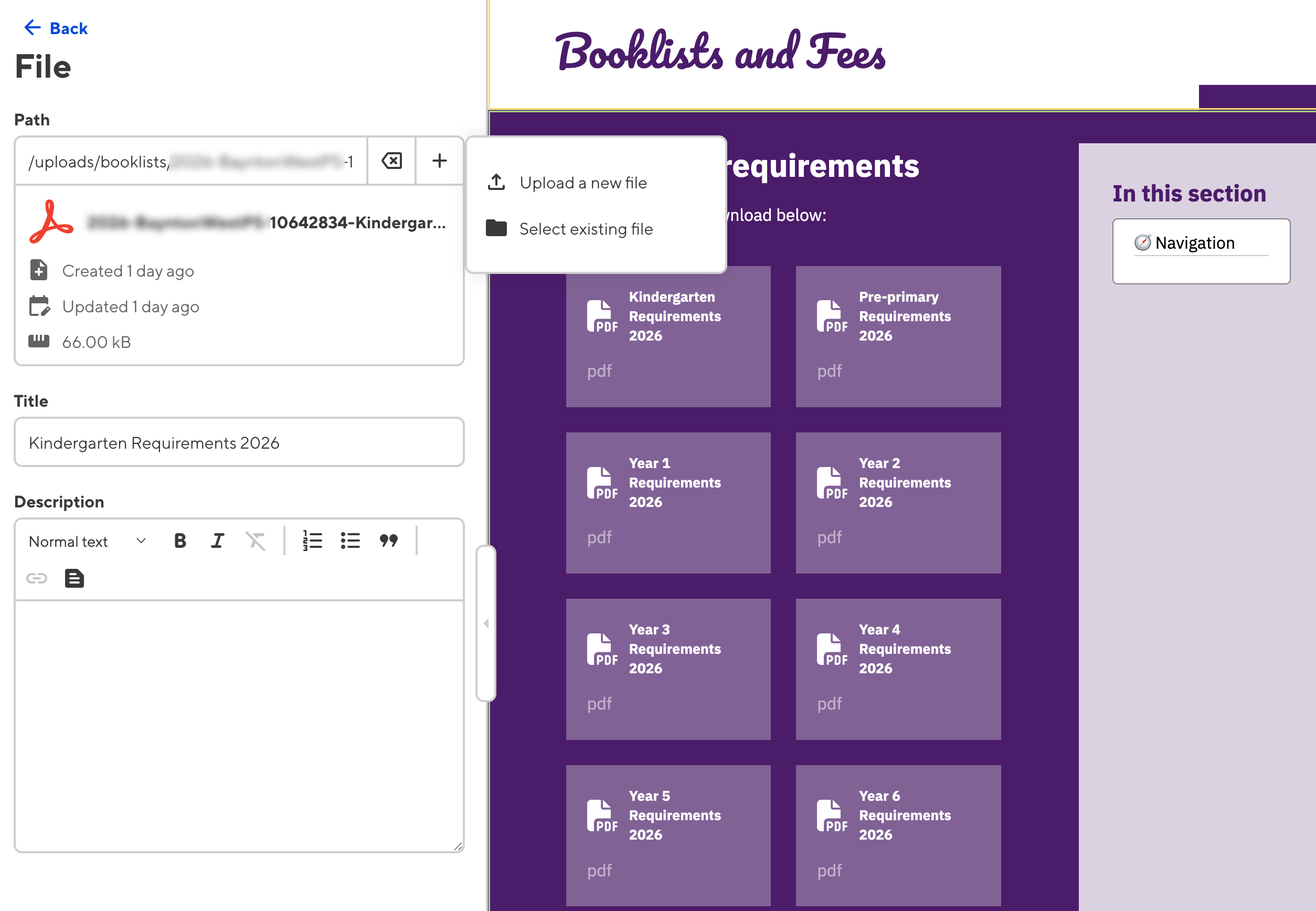
Here’s a few screen shots typical of what the Content Contributors currently see when going to edit a page holding a collection of PDF’s.

I would love some insights, pointers or additional guidance on best practices for client access and ease of managing file uploads within the Cloud Cannon environment.

I would love to see how other teams handle this if anyone is willing to share examples.

Thank you!
3 Likes

Hi Rosemary,

Sorry for the slow reply here!

DAMs vs Site files

One source of confusion for our users - is what destination to use - should they upload a new file to the Site Files or the DAM?

  1. Do you only present Content Editors with your preferred option?

  2. Do you have a better way to offer these choices in a way that’s easier for Content Editors to understand?

This is completely up to you. My opinion is, if you have a DAM already set up, you may as well use it to store your assets rather than adding assets directly to site files. You can disable the option to add to, and browse, site files.

To do this on a per-input level, you can use the key allowed_sources in the input’s options.

_inputs:
  image:
    options:
      allowed_sources:
        - my-cloudinary-dam
        - site-files

If you omit the site-files from this input, they’ll only see an option to upload to the DAM (in this case a cloudinary one).

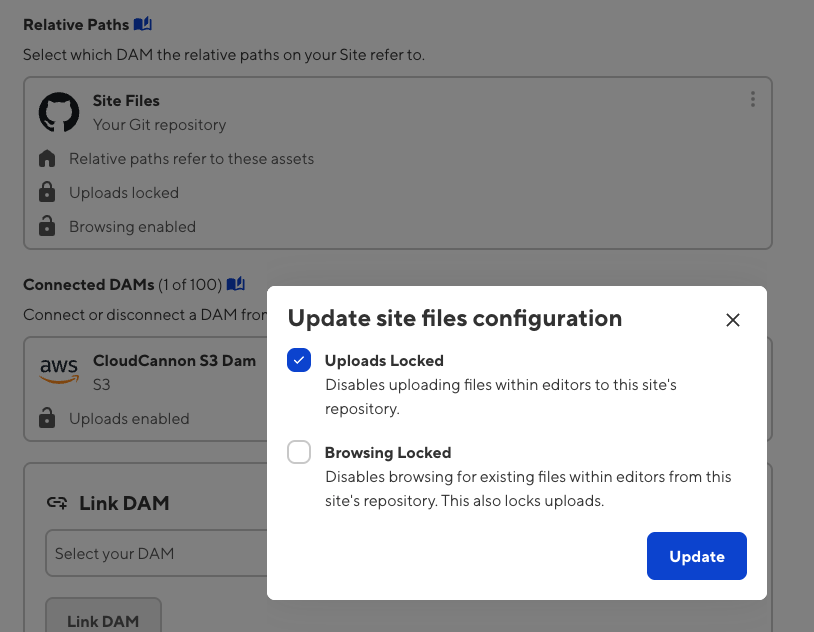
To do this globally for all inputs on a site, you can go to Org Settings > Assets, and select the DAM that is connected to your CloudCannon org. From there you should be able to see a Sites tab, which will list the sites connected to that DAM. If you click on one of the sites, it will take you to the site’s Assets settings. In this screen, you can click on the three dots in the top right of the card displaying your site’s Relative Paths settings. If you check Uploads Locked editors won’t be able to upload to local site files, only the connected DAM. Similarly if you check Browsing Locked, editors won’t be able to browse local site files, only the connected DAMs files.

Upload to Subfolders

Currently - irregardless of choosing Site Files or DAM there doesn’t seem to be a way for the Content Editor to then easily navigate to upload subfolders such as “Booklists” or “Annual Reports”.

You can set the upload path per input, so if you know what that there is an image input in the annual reports section, you can add that to it’s path like:

_inputs:
  image:
    type: image
    options:
      paths:
        uploads: public/images/annual-reports
        static: public

You’d just want to make sure to set this only on inputs that are scoped to be used where applicable to annual-reports.

Another solution if you did want to have editors browsing around to find a subfolder, rather than setting the location in the uploads path, is to Select from existing files. This will open a modal that allows you to navigate around your subfolders, and provides an Add button in the top right of the modal where you could choose to upload a file to the folder you’re in. I can see from looking at your screenshots that you’re probably already aware of this method.

I can’t say how other teams have handled it, but personally - if trying to organise my assets by subfolder - I prefer the former option where, for example, I’d scope the inputs in a collection to have an uploads path with that collection name. Usually you’ll know enough about how and where an input is going to be used to make it easy for the editor by setting the subfolder for them in the uploads path. This avoids any extra decisions or uncertainty for the editor.

I hope that helps some!

If any CloudCannon users reading this are willing to share how they’ve set up their asset management workflows on their orgs, I’d also be curious :slight_smile:

Best wishes,
Tom

2 Likes

Hi Tom.

Thank you very much for your detailed response. Please accept my apologies for being slow to acknowledge your reply. My dear dad passed away and my focus was elsewhere.

I’m more adept at design and content edits than the code side of things at present so I will chat with my capable offsider about the information provided here.

Thank you - will get back in touch if needed.

Kind regards,

Rosemary

@Rosemary_Lynch So sorry to hear about your dad! Sending our condolences from all of us here at CloudCannon :heart:

1 Like

Thank you Chris. :mending_heart:

1 Like

No problem Rosemary. I’m really sorry to hear about your dad :frowning:

Let us know when you’re ready to pick things back up, and we’ll be here to answer any questions you have.